


You’ve finally done it. You’ve connected your cutting-edge CRM to your robust email marketing platform, envisioning a seamless flow of customer data, personalized campaigns, and optimized outreach. But then, it happens. The data isn’t syncing, emails aren’t sending, or your carefully crafted automations are failing spectacularly. Don’t panic. API integration errors are a common, albeit frustrating, part of the development and deployment process. This guide will walk you through troubleshooting these hiccups, empowering you to diagnose and resolve issues between your CRM and email platform, ensuring your digital ecosystem works in perfect harmony.
Before you can effectively troubleshoot, you need to understand the fundamental principles behind API integrations. Think of an API (Application Programming Interface) as a digital waiter, taking your order (a request) from one application and delivering it to the kitchen (another application), then bringing back the prepared dish (a response). When this communication breaks down, that’s where your errors lie.
What is an API Request?
You initiate an API request when your CRM wants to send data to your email platform (e.g., “add this new lead to my mailing list”) or when your email platform needs to retrieve data from your CRM (e.g., “get the purchase history for this customer”). This request typically includes:
- Endpoint: The specific URL that identifies the resource you’re interacting with on the other application.
- Method: The type of action you want to perform (e.g., GET to retrieve data, POST to create new data, PUT/PATCH to update data, DELETE to remove data).
- Headers: Metadata about the request, such as authentication tokens, content type, and accepted formats.
- Body: The actual data payload you’re sending (e.g., the new lead’s name, email, and company).
What is an API Response?
Upon receiving your request, the other application processes it and sends back a response. This response is crucial for troubleshooting as it contains valuable information:
- Status Code: A three-digit number indicating the outcome of the request (e.g., 200 OK for success, 400 Bad Request for a client-side error, 401 Unauthorized for authentication issues, 404 Not Found for a missing resource, 500 Internal Server Error for a server-side problem).
- Headers: Similar to request headers, providing metadata about the response.
- Body: The data returned by the server (e.g., the newly created contact’s ID, an error message, or the requested customer data).
Common Points of Failure in API Communication
Knowing these fundamental components, you can identify where the breakdown often occurs:
- Incorrect Endpoint: You’re sending your request to the wrong address.
- Invalid Method: You’re trying to create data with a “GET” request, for example.
- Missing or Incorrect Authentication: The server doesn’t recognize you or your credentials.
- Malformed Request Body: The data you’re sending isn’t in the expected format (e.g., JSON instead of XML, or missing required fields).
- Rate Limiting: You’re sending too many requests too quickly, and the server temporarily blocks you.
- Server-Side Errors: The receiving application is experiencing an internal issue.
- Network Connectivity Issues: A problem somewhere between your CRM and the email platform preventing communication.
If you’re looking to further enhance your understanding of API integration challenges, you might find the article on “Common API Integration Issues and How to Fix Them” particularly useful. It provides insights into troubleshooting techniques that can help streamline the integration process between various platforms. You can read more about it here: Common API Integration Issues and How to Fix Them. This resource complements the strategies outlined in “How to Resolve API Integration Errors Between Your CRM and Email Platform” by offering additional context and solutions.
Initial Checks and Sanity Saves
Before diving into complex debugging, start with the basics. Many integration errors can be resolved with a few quick checks.
Verify API Credentials and Permissions
This is often the lowest-hanging fruit. Have your API keys or tokens expired? Have permissions been revoked or changed?
- Double-check your API keys/tokens: Ensure they are copied and pasted exactly as provided by both your CRM and email platform. Even a single misplaced character can cause an authentication failure.
- Review user permissions: Does the user associated with the API key have the necessary permissions to perform the actions you’re requesting? For instance, if you’re trying to create new contacts, the API user needs write access to contact data.
- Check for IP whitelisting: Some platforms require you to whitelist the IP address from which your API calls originate for security reasons. Confirm that your CRM’s server IP (or your integration middleware’s IP) is on the approved list.
Examine API Documentation Thoroughly
The API documentation provided by your CRM and email platform is your bible. It’s easy to skim, but errors often arise from subtle misunderstandings of required parameters or data formats.
- Required vs. Optional Fields: Are you sending all the mandatory fields for a specific API call? Many APIs will reject requests that are missing critical information.
- Data Types and Formats: Is a field expecting an integer but you’re sending a string? Is a date format “YYYY-MM-DD” but you’re sending “MM/DD/YYYY”? Pay close attention to these details.
- Endpoint Specifications: Are you using the correct version of the API? Are there different endpoints for different environments (e.g., sandbox vs. production)?
- Rate Limits: Understand the limitations on how many requests you can make within a given timeframe. Exceeding these limits will result in temporary blocks.
Test Connectivity and Basic API Calls
Sometimes the issue is simply a lack of connectivity or a fundamental authentication problem.
- Ping Endpoints: If possible, try to ping the API endpoints from your CRM’s server (or your integration tool) to ensure basic network reachability.
- Use a REST Client: Tools like Postman, Insomnia, or even
curlcan be invaluable. Use them to make simple API calls (e.g., getting a list of contacts) with your credentials. This isolates the problem: if it works in Postman but not in your integration, the issue is likely with your integration’s code/configuration. If it fails in Postman too, the problem is more fundamental (credentials, network, server-side).
Diving Deeper: Decoding API Error Codes

API error codes are your first and most valuable clue. They provide immediate insight into what went wrong. Don’t just see a “400” and move on; understand what each code signifies.
4xx Client Error Codes
These indicate that something is wrong with your request. The server understood your request but couldn’t fulfill it due to an issue on your end.
- 400 Bad Request: This is a general “something is wrong with your request” error. It often means:
- Malformed JSON/XML: Your request body isn’t properly formatted.
- Missing Required Parameters: You didn’t include a field that the API expects.
- Invalid Parameter Values: You sent a value that doesn’t fit the expected type or range for a specific field (e.g., an invalid email address format).
- Solution: Check the API documentation for required parameters and expected data formats. Use a JSON validator if you’re sending JSON.
- 401 Unauthorized: Your request lacks valid authentication credentials.
- Solution: Verify your API keys/tokens. Ensure they haven’t expired or been revoked. Check that you’re including them correctly in the request headers or body as specified by the API.
- 403 Forbidden: You are authenticated, but you don’t have the necessary permissions to access the requested resource or perform the action.
- Solution: Review the permissions granted to your API user/token in both your CRM and email platform. You might need to elevate the user’s role or grant specific API access.
- 404 Not Found: The requested resource does not exist at the specified endpoint.
- Solution: Double-check the URL/endpoint you’re calling. Ensure there are no typos. If you’re requesting a specific record (e.g., a contact by ID), verify that the ID is correct and the record actually exists.
- 405 Method Not Allowed: You’re trying to use an HTTP method (GET, POST, PUT, DELETE) that isn’t supported for that particular endpoint.
- Solution: Consult the API documentation to see which methods are allowed for the endpoint you’re targeting. For example, you can’t usually “POST” to retrieve data; you’d use “GET.”
- 429 Too Many Requests: You have exceeded the API’s rate limits.
- Solution: Implement exponential backoff or token bucket algorithms in your integration logic to space out your requests. Check the API documentation for specific rate limit headers (e.g.,
X-RateLimit-Limit,X-RateLimit-Remaining,X-RateLimit-Reset) to programmatically handle these limits.
5xx Server Error Codes
These indicate that the server encountered an error while trying to fulfill your valid request. The problem is on their end, not yours.
- 500 Internal Server Error: A generic error indicating that something went wrong on the server.
- Solution: While this is a server-side error, you should still check your request to ensure it’s absolutely correct, as sometimes malformed requests can trigger unexpected server behavior. If your request is correct, the next step is to contact the support team of the platform experiencing the 500 error. Provide them with your request details and the exact timestamp.
- 502 Bad Gateway / 503 Service Unavailable / 504 Gateway Timeout: These often indicate temporary issues with the server or its proxies.
- Solution: These are usually transient. Implement retry logic in your integration with an increasing delay between retries. If the issue persists, check the platform’s status page or contact their support.
Advanced Troubleshooting Techniques
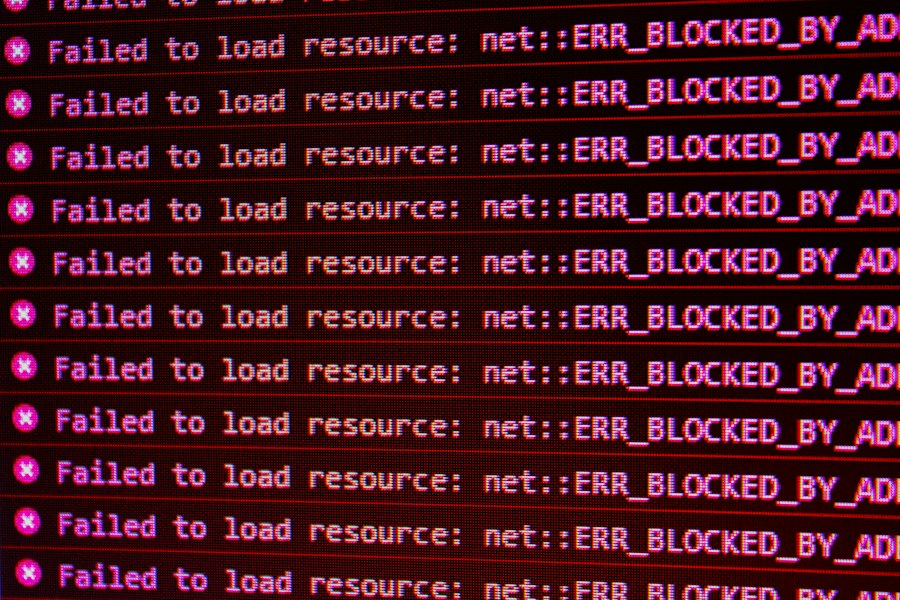
When simple checks and error codes aren’t enough, it’s time to pull out the bigger guns.
Leveraging Logs and Debugging Tools
Your integration’s logs and external debugging tools are invaluable for pinpointing elusive issues.
- Integration Platform Logs: If you’re using an integration platform (e.g., Zapier, Make, Workato, custom code), it will have its own logging system. These logs often capture:
- Full API Request and Response Payloads: This is critical. You can see exactly what your integration sent and exactly what the receiving API sent back, including error messages in the response body.
- Error Messages and Stack Traces: Detailed information about where in your integration’s logic an error occurred.
- Timestamps: Essential for correlating events across different systems.
- CRM and Email Platform API Logs: Many platforms offer their own API logs within their administration panels. These logs show incoming API requests and their outcomes, providing an external perspective on what the platform received from your integration.
- Network Packet Analyzers (Advanced): Tools like Wireshark can capture and analyze network traffic at a low level. This is generally overkill for most API issues but can be useful for diagnosing deep-seated connectivity problems or obscure SSL/TLS handshake failures.
- Browser Developer Tools: If your integration involves webhooks or calls initiated from a web interface, your browser’s developer tools (F12) can show network requests, responses, and headers.
Data Mapping and Transformation Woes
A significant percentage of integration errors stem from incorrect data mapping or transformation.
- Field Type Mismatches: You’re trying to send a text string to a number field, or a list of values to a single-select dropdown.
- Solution: Carefully review the field types in both your CRM and email platform. Ensure your integration performs any necessary type conversions (e.g., converting a boolean “true”/”false” string to a 1/0 integer if required).
- Missing or Unexpected Data: A field that’s critical in the email platform might be optional or non-existent in the CRM, or vice-versa.
- Solution: Implement robust error handling for missing data. Consider default values, conditional logic (e.g., “if CRM field is empty, send ‘N/A'”), or transformation rules to ensure all required fields are populated.
- Incorrect Data Formatting: Dates, currencies, phone numbers, and addresses often have platform-specific formatting requirements.
- Solution: Use transformation functions in your integration to format data according to the target API’s specifications. For dates, ISO 8601 (e.g.,
2023-10-27T10:00:00Z) is a common and reliable standard. - Complex Nested Structures: Some APIs expect data in complex nested JSON or XML structures.
- Solution: Visualize the expected data structure from the API documentation. If your CRM’s data is flat, you’ll need to use your integration tool’s mapping features to build the nested structure correctly.
Webhook and Event-Driven Integration Issues
Webhooks are crucial for real-time data synchronization, but they introduce their own set of challenges.
- Webhook Delivery Failures: The CRM sends a webhook, but the email platform never receives it.
- Solution:
- Check CRM Webhook Logs: Most CRMs provide logs of webhook attempts, including success/failure status and response codes from the receiving URL.
- Verify Webhook URL: Is the URL configured in the CRM pointing to the correct endpoint in your email platform or integration middleware?
- Firewall/Security Restrictions: Is a firewall blocking the incoming webhook? Ensure the IP address of your CRM is whitelisted on your receiving server/platform.
- SSL Certificate Issues: If your webhook URL uses HTTPS, ensure the SSL certificate is valid and trusted.
- Webhook Payload Mismatches: The receiving endpoint expects a certain data structure, but the CRM’s webhook sends something different.
- Solution: Consult the CRM’s webhook documentation to understand the payload structure. You’ll likely need to write custom code or use an integration platform to parse and transform this payload into the format expected by your email platform’s API.
- Signature Verification Failures: Many platforms sign webhooks for security. If the signature doesn’t match, the receiving endpoint will reject it.
- Solution: Ensure your receiving endpoint is correctly implementing the signature verification logic, using the correct secret key provided by the CRM.
If you’re facing challenges with API integration errors between your CRM and email platform, you might find it helpful to explore a related article that delves deeper into troubleshooting techniques. This resource provides valuable insights and practical tips for effectively resolving common integration issues. For more information, check out this informative piece on troubleshooting API integration that can enhance your understanding and streamline your processes.
Maintaining a Healthy Integration: Best Practices
| Metric | Description | Recommended Action | Expected Outcome |
|---|---|---|---|
| API Response Time | Time taken for the API to respond to requests | Optimize API calls and reduce payload size | Faster data synchronization between CRM and Email Platform |
| Error Rate | Percentage of API requests resulting in errors | Implement error handling and retry logic | Reduced failed API calls and improved reliability |
| Authentication Failures | Number of failed authentication attempts | Verify API keys and update credentials regularly | Secure and successful API connections |
| Data Mismatch Incidents | Instances where data between CRM and Email Platform do not align | Validate data formats and mapping rules | Consistent and accurate data across platforms |
| Timeouts | Number of API requests that time out | Increase timeout settings and optimize server performance | Reduced timeouts and improved data transfer stability |
| API Version Compatibility | Compatibility status between CRM and Email Platform API versions | Keep APIs updated and check for deprecations | Seamless integration with latest features and fixes |
Troubleshooting is reactive; best practices are proactive. By adopting these, you’ll minimize future errors.
Implement Robust Error Handling and Retries
Don’t let a single API error break your entire integration.
- Try/Catch Blocks (Code): Wrap API calls in error-handling blocks to gracefully catch exceptions.
- Retry Mechanisms with Exponential Backoff: For transient errors (e.g., 5xx status codes, network timeouts), automatically retry the request after increasing delays. This prevents overwhelming the server and gives it time to recover.
- Dead Letter Queues/Error Queues: If an error persists after retries, move the failed record to a “dead letter queue” for manual inspection and reprocessing, rather than silently dropping it.
Monitor Your Integrations Continuously
Stay ahead of problems by actively monitoring your integration’s performance.
- Alerting: Set up alerts for critical errors (e.g., sustained 4xx/5xx errors, high retry rates, failed data syncs).
- Dashboarding: Create dashboards to visualize key metrics like API call volume, success rates, error rates, and data sync latency.
- Scheduled Health Checks: Periodically make simple API calls to both platforms to ensure basic connectivity and authentication are working.
Version Control and Documentation
Treat your integration like any other critical piece of software.
- Version Control Your Code/Configuration: If you’re using custom code, use Git. If you’re using an integration platform, leverage its versioning features to track changes.
- Document Everything: Document your API keys, endpoint URLs, data mapping rules, transformation logic, and any custom code. This is invaluable for future troubleshooting and onboarding new team members.
- Stay Up-to-Date with API Changes: APIs evolve. Subscribe to developer newsletters from your CRM and email platform to be notified of upcoming changes, deprecations, or new features that might impact your integration. Regularly review their API documentation for updates.
Conclusion
Troubleshooting API integration errors between your CRM and email platform can feel like navigating a maze, but with a systematic approach, you can conquer even the most stubborn issues. Start with the basics: verify credentials, consult documentation, and test connectivity. Then, delve into error codes, examine logs, and meticulously review your data mapping. By embracing a proactive mindset, implementing robust error handling, and continuously monitoring your integrations, you’ll build a resilient and efficient digital ecosystem that empowers your marketing and sales efforts. Remember, every error is an opportunity to learn and strengthen your integration strategy.
FAQs
What are common API integration errors between CRMs and email platforms?
Some common API integration errors include authentication failures, data formatting issues, rate limiting errors, and endpoint mismatches.
How can you troubleshoot API integration errors between your CRM and email platform?
You can troubleshoot API integration errors by checking your API keys, ensuring data is formatted correctly, monitoring API usage limits, and verifying that endpoints are correctly configured.
Why is it important to resolve API integration errors promptly?
Resolving API integration errors promptly is important to ensure the smooth flow of data between your CRM and email platform, maintain data accuracy, and prevent disruptions in your marketing and sales processes.
What are some best practices for preventing API integration errors?
Some best practices for preventing API integration errors include thorough testing before deployment, keeping API documentation up to date, monitoring API usage regularly, and implementing proper error handling mechanisms.
When should you seek help from technical support for API integration errors?
You should seek help from technical support for API integration errors when you have exhausted troubleshooting options, encounter complex errors that you cannot resolve on your own, or experience significant disruptions in your CRM and email platform integration.