
Troubleshooting SMTP Email Sending Issues
When emails fail to send, the underlying cause often lies within the Simple Mail Transfer Protocol (SMTP) process. This robust, yet sometimes opaque, system, responsible for relaying messages between mail servers, can present a variety of challenges. Diagnosing these SMTP email sending issues requires a systematic approach, examining the configuration, network connectivity, and server-side operations involved in the email delivery chain. This article outlines a comprehensive guide to troubleshooting common SMTP problems, empowering users and administrators to identify and resolve these impediments.
Before delving into specific troubleshooting steps, it is essential to grasp the fundamental flow of an email using SMTP. This understanding provides context for the potential points of failure.
The Role of the Mail Submission Agent (MSA)
The process begins with the sender’s email client or application submitting the email for transmission. This submission typically occurs via an MSA, often running on a dedicated port like 587, which requires authentication. The MSA acts as the initial gateway, verifying the sender’s credentials and ensuring the message adheres to basic formatting standards before passing it to the Mail Transfer Agent (MTA).
The Mail Transfer Agent (MTA) and Mail Delivery Agent (MDA)
Once authenticated, the email is handed off to the sender’s MTA. The MTA is responsible for determining the recipient’s mail server and initiating the onward transmission. This involves DNS lookups to find the MX (Mail Exchanger) records for the recipient’s domain. Upon successful connection to the recipient’s mail server, the sender’s MTA transfers the email to the recipient’s Mail Delivery Agent (MDA) on the recipient’s mail server. The MDA then places the email in the recipient’s mailbox, making it available for retrieval by the recipient’s email client.
Common SMTP Commands and Responses
The communication between MTAs is facilitated by a series of SMTP commands, such as HELO (or EHLO), MAIL FROM, RCPT TO, DATA, and QUIT. Understanding the expected responses to these commands is crucial for diagnosing communication errors. For instance, a 250 OK indicates a successful operation, while a 5xx error typically signifies a permanent failure, and a 4xx error suggests a temporary issue.
If you’re experiencing issues with your SMTP not sending emails, it’s essential to understand the potential causes and solutions. For a more in-depth look at troubleshooting email delivery problems, you can refer to the article on “Common SMTP Errors and How to Fix Them” here. This resource provides valuable insights into various SMTP errors, along with practical steps to resolve them, ensuring your email communication remains uninterrupted.
Basic Connectivity and Configuration Checks
Many SMTP issues stem from simple misconfigurations or network problems that can be resolved with straightforward checks. Addressing these initial points can often save significant time and effort.
Verifying SMTP Server Settings
The most fundamental check involves ensuring that the SMTP client (your email program or application) is configured with the correct SMTP server address, port, and authentication credentials.
SMTP Server Address and Port
Incorrectly entered server names (e.g., typos in smtp.example.com) or incorrect port numbers (e.g., using port 25 for a server that requires port 587 for submission) are common causes of failure. Always confirm these details with your email provider or system administrator. Common ports include:
- 25: Standard SMTP port, often used for server-to-server communication, but increasingly blocked by ISPs for direct client submission due to spam concerns.
- 587: Mail Submission Agent (MSA) port, typically used for authenticated client submission and generally preferred.
- 465: SMTPS (SMTP over SSL/TLS), an older secure SMTP protocol, which is still used by some providers.
Authentication Credentials
Inaccurate usernames or passwords for SMTP authentication will invariably lead to rejection by the mail server. Ensure that the credentials entered exactly match those provided by your email service. Pay close attention to case sensitivity and any special characters. If password policies have changed or if you suspect a leaked credential, resetting your password is a prudent step.
Firewall and Antivirus Interference
Network security software, including firewalls and antivirus programs, can sometimes mistakenly identify legitimate SMTP traffic as malicious, leading to its blockage.
Firewall Rules
Both software firewalls on the client machine and network firewalls on the server or gateway can prevent SMTP connections. Verify that your firewall allows outgoing connections on the configured SMTP port to the specified SMTP server. If you are sending through an office network, the IT department may need to adjust firewall rules.
Antivirus Software and Email Scanners
Some antivirus suites include email scanning features that can interfere with the SMTP process. Temporarily disabling these features can help determine if they are the cause. If disabling them resolves the issue, you may need to reconfigure the antivirus software to exclude your email client or SMTP traffic from scanning.
Diagnosing SMTP Errors and Failure Codes
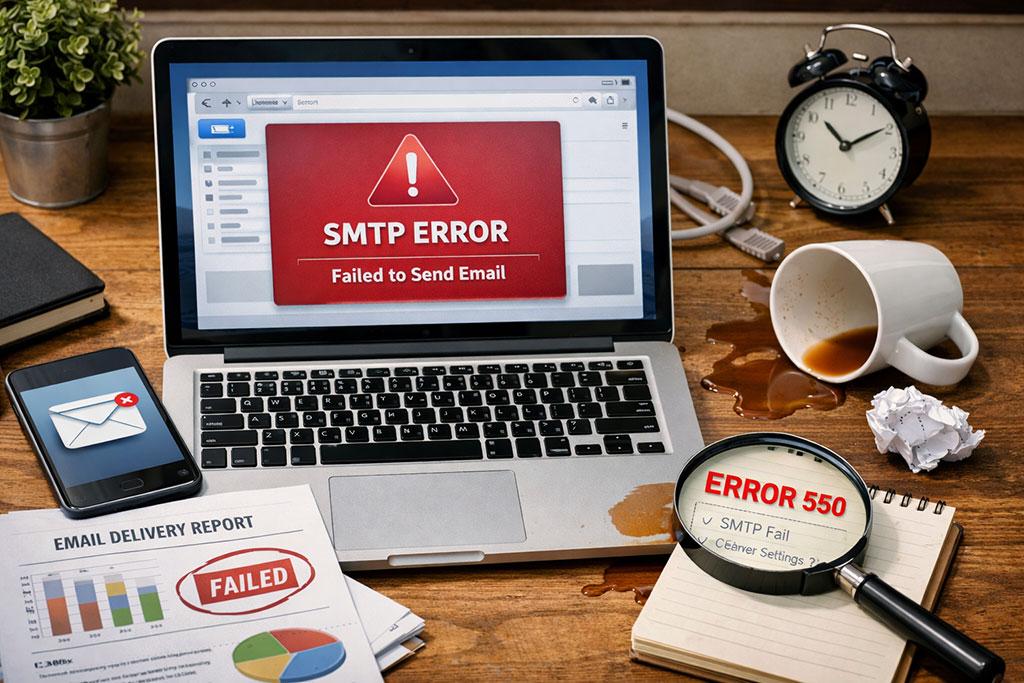
When connections are correctly configured, and network access is clear, the next step is to interpret the specific error messages and SMTP codes returned by the server. These provide vital clues to the nature of the problem.
Common SMTP Error Codes and Their Meanings
Understanding the standard SMTP response codes is paramount to effective troubleshooting.
5xx Permanent Negative Completion Replies
These codes indicate that the server has encountered a permanent error and will not accept the request.
- 550 Requested action not taken: mailbox unavailable (e.g., mailbox not found, no access): This is a very common error, indicating that the recipient’s email address does not exist or the server is configured to reject mail from your IP address. It can also indicate that the recipient’s inbox is full, although this is less common now with modern mail servers.
- 553 Requested action not taken: mailbox name not allowed (e.g., syntax error in address): This error suggests an issue with the syntax of the recipient’s email address. Ensure there are no extra spaces, incorrect characters, or missing components like the “@” symbol or domain name.
- 554 Transaction failed (or similar): A general error code indicating that the transaction has failed, often due to policy violations, blacklisting, or server-side issues. The accompanying text may provide more specific information.
4xx Transient Negative Completion Replies
These codes indicate a temporary problem. The server suggests retrying the operation later.
- 421 Service not available, closing transmission channel: This indicates that the mail server is temporarily unavailable, possibly due to overload or maintenance. Retrying the send operation after a short interval is usually sufficient.
- 450 Requested mail action not taken: mailbox unavailable (e.g., previously encountered): Similar to 550, but temporary. This might occur if the recipient’s mailbox is temporarily locked or experiencing issues.
- 451 Requested action aborted: local error in processing: Indicates a problem on the recipient’s mail server that prevents it from processing the email at that moment.
Using SMTP Logs for Deeper Analysis
SMTP server logs are invaluable resources for detailed diagnostics. These logs record the communication between MTAs, including the commands sent and the responses received.
Identifying the Source of the Error
By examining the SMTP logs on both the sending and receiving mail servers (if accessible), one can trace the exact point where the communication failed. This can help pinpoint whether the issue is with the sender’s configuration, the network path, or the recipient’s server.
Analyzing Message Headers
Email message headers contain a wealth of information about the path an email has taken, including the timestamps and servers involved. Analyzing these headers can reveal delays or rejections at specific hops in the delivery chain.
Troubleshooting Recipient-Side Issues

While many SMTP problems originate from the sender’s end, the recipient’s mail server configuration and policies play a significant role in email delivery.
Mailbox Availability and Quotas
The recipient’s mailbox must be valid and have sufficient space to receive new emails.
Non-existent or Incorrectly Typed Email Addresses
The most straightforward reason for a non-delivery report (NDR) is an incorrect or non-existent recipient email address. Always double-check the address for typos.
Full Mailboxes
While less common with modern mail storage, a recipient’s mailbox can become full if they haven’t deleted old emails. This will result in an NDR indicating a full mailbox, often with a bounce-back message from the recipient’s mail server.
Sender Reputation and Blacklisting
Receiving mail servers employ various mechanisms to protect their users from spam. A poor sending reputation or inclusion on a blacklist can prevent emails from being delivered.
IP Address Blacklists (RBLs/DNSBLs)
Real-time Blackhole Lists (RBLs) or DNS-based Blackhole Lists (DNSBLs) are lists of IP addresses known to send spam. If the IP address of your SMTP server is on such a list, many mail servers will reject your emails.
Sender Domain Reputation
Similar to IP reputation, the reputation of the sending domain can influence deliverability. Consistent sending of spam or unsolicited emails can tarnish a domain’s reputation.
Content Filtering and Spam Traps
Even if your IP and domain have good reputations, the content of your email can trigger spam filters. Overuse of certain keywords, suspicious formatting, or malicious links can lead to emails being flagged as spam or sent to spam traps (email addresses designed to catch spammers).
If you’re experiencing issues with your SMTP not sending emails, it might be helpful to explore troubleshooting steps outlined in a related article that discusses common email delivery problems. This resource provides insights into potential misconfigurations and offers solutions to ensure your email service runs smoothly. You can read more about these troubleshooting techniques in the article here.
Network and DNS Resolution Problems
| Issue | Possible Solution |
|---|---|
| Check SMTP server settings | Ensure correct server address, port, and authentication |
| Check firewall and antivirus settings | Ensure they are not blocking the SMTP connection |
| Check email sending limits | Ensure you are not exceeding the sending limits set by your email provider |
| Check for blacklisting | Ensure your IP address is not blacklisted by email providers |
| Check email content | Avoid using spam-triggering content in your emails |
Issues with network connectivity or the Domain Name System (DNS) can prevent the SMTP client from reaching the mail server or the mail server from resolving the recipient’s domain.
Verifying Network Reachability
Ensuring that the sending server can physically connect to the destination SMTP server is fundamental.
Ping and Traceroute
The ping utility can verify basic network connectivity to an IP address. traceroute (or tracert on Windows) can show the path network packets take to reach the destination, helping to identify where network congestion or packet loss might be occurring.
Port Scanning
Tools like nmap can be used to scan specific ports on a remote server to confirm if the SMTP port is open and accessible.
DNS Resolution for MX Records
SMTP relies heavily on DNS for locating the mail servers responsible for receiving emails for a given domain.
Incorrect MX Records
If the MX records for the recipient’s domain are misconfigured or point to the wrong servers, the sender’s MTA will be unable to find the correct destination.
DNS Propagation Delays
When DNS records are changed, it can take time for these changes to propagate across the internet. During this propagation period, some users might experience issues resolving the domain.
Advanced Troubleshooting and Remediation Strategies
When basic checks and error code analysis do not yield a solution, more advanced techniques and strategies are required.
Using Network Analysis Tools
Tools that capture and analyze network traffic can provide deep insights into communication patterns and identify subtle issues.
Wireshark/tcpdump
These packet analysis tools can capture all network traffic passing through an interface. By filtering for SMTP traffic, one can examine the raw data exchanged between the client and server, revealing the exact commands, responses, and any low-level network errors.
Analyzing Handshake Failures
Packet analysis can reveal issues during the TLS/SSL handshake if secure SMTP is being used, such as certificate problems or incompatible cipher suites.
Implementing Rate Limiting and Throttling
To prevent potential abuse and manage server resources, SMTP servers often implement rate limiting.
Understanding Sending Limits
If you are sending a large volume of emails, you might be hitting rate limits imposed by your ISP or your email provider. This can result in temporary rejections or disconnections.
Implementing Greylisting and CAPTCHA
Some mail servers use greylisting, where initial attempts to send mail from an unknown sender are temporarily rejected. The sender’s server is expected to retry, at which point the mail is accepted. This helps combat spam from poorly configured or malicious bots. For automated systems sending emails, implementing CAPTCHAs or other human verification methods might be necessary to distinguish legitimate users from bots.
Proactive Email Deliverability Monitoring
For organizations that rely heavily on email for communication or marketing, proactive monitoring of email deliverability is crucial.
Monitoring SenderScore and Reputation Services
Services like SenderScore, Spamhaus, and others provide metrics and reports on IP address and domain reputation. Regularly checking these can help identify potential issues before they significantly impact deliverability.
Utilizing Email Sending Analytics
Many email service providers offer analytics dashboards that track delivery rates, bounce rates, and spam complaints. Regularly reviewing this data can highlight trends and areas for improvement.
By systematically applying these troubleshooting steps, from basic configuration checks to advanced network analysis, most SMTP email sending issues can be effectively identified and resolved. A thorough understanding of the SMTP protocol and the common pitfalls associated with its implementation is key to maintaining reliable email communication.
FAQs
1. What is SMTP and why is it important?
SMTP stands for Simple Mail Transfer Protocol, and it is the standard protocol used for sending emails over the internet. It is important because it allows for the reliable delivery of emails from one server to another.
2. What are common reasons for SMTP not sending emails?
Common reasons for SMTP not sending emails include incorrect server settings, network issues, blacklisting, and authentication problems.
3. How can I troubleshoot SMTP sending issues?
To troubleshoot SMTP sending issues, you can check your server settings, test your network connection, check for blacklisting, and ensure that your authentication credentials are correct.
4. What are some best practices for ensuring successful SMTP email delivery?
Some best practices for ensuring successful SMTP email delivery include using a reputable email service provider, monitoring your email deliverability, and following email sending guidelines.
5. When should I seek professional help for SMTP sending issues?
You should seek professional help for SMTP sending issues if you have exhausted all troubleshooting steps, if you are experiencing consistent delivery problems, or if you are unsure how to resolve the issue on your own.