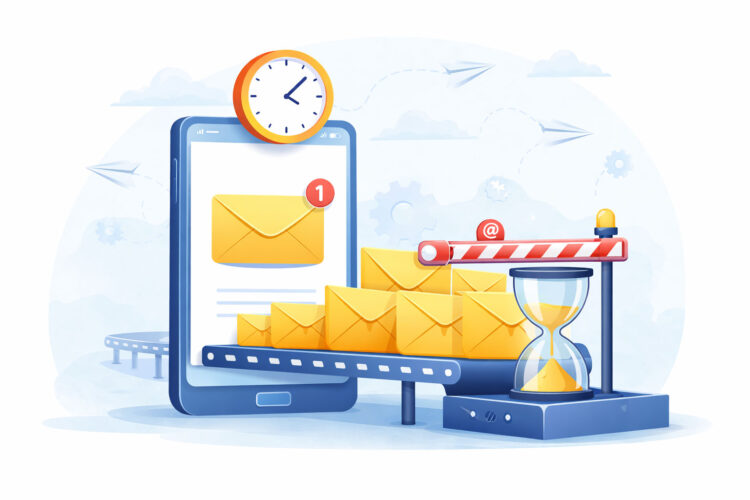
You’ve pressed send, expecting your email to arrive promptly, only to find it hasn’t landed in the recipient’s inbox hours later. This experience is frustratingly common in the digital age, where instant communication is the norm. Understanding why emails get delayed and what steps you can take to rectify the situation is essential for maintaining efficient communication. This guide will walk you through the common causes of delayed emails and provide actionable solutions, ensuring your messages reach their intended destination as quickly as possible.
Before diving into troubleshooting, it’s beneficial to grasp the fundamentals of how an email travels from your Outbox to a recipient’s Inbox. When you click “Send,” your email client (like Outlook, Gmail, or Thunderbird) doesn’t directly send the message to the recipient’s personal inbox. Instead, it sends the email to your Outgoing Mail Server, also known as a Simple Mail Transfer Protocol (SMTP) server.
SMTP Server’s Role
Your SMTP server then initiates a conversation with the recipient’s mail server. This conversation involves a series of checks and validations. The recipient’s mail server verifies if the sender’s domain is legitimate, if the recipient’s email address exists, and if there are any suspicious characteristics about the email itself (such as potential spam content). Once these checks are passed, the recipient’s server accepts the email and places it in the recipient’s inbox. Any hiccup in this multi-step process can lead to significant delays.
DNS Resolution
A critical part of this process involves Domain Name System (DNS) resolution. When your SMTP server needs to send an email to [email protected], it queries DNS to find the Mail Exchange (MX) record for example.com. The MX record points to the recipient’s mail server. If DNS resolution is slow, incorrect, or unavailable, the email delivery process grinds to a halt.
Common Causes of Delayed Emails on the Sender’s Side
Often, the problem originates closer to home – from your own email setup or network. Addressing these issues can resolve many delay problems before they escalate.
Network Connectivity Issues
The most fundamental requirement for sending an email is a stable internet connection. If your connection is intermittent or extremely slow, your email client may struggle to hand off the message to your SMTP server.
Checking Your Network Connection
- Test other internet services: Can you browse websites, stream videos, or access other online applications without issues? If not, your internet connection is likely the culprit.
- Restart your router/modem: A simple restart can often resolve temporary network glitches.
- Try a different network: If possible, connect your device to an alternative network (e.g., a mobile hotspot) and attempt to send the email. If it goes through, your primary network is the problem.
Incorrect SMTP Server Settings
Your email client needs to know exactly which SMTP server to use and with what credentials. Incorrect configuration is a very common cause of emails getting stuck in the Outbox.
Verifying SMTP Settings
- Consult your email provider: Refer to your email provider’s (Gmail, Outlook, company IT) documentation for the correct SMTP server address, port number (usually 25, 465, or 587), and encryption method (SSL/TLS).
- Check your email client’s settings: Navigate to the account settings within your email client and meticulously compare them against the provider’s specifications. A single typo can prevent successful transmission.
- Verify authentication: Most SMTP servers require authentication (username and password). Ensure these credentials are correct and that the “My outgoing server requires authentication” option is enabled if applicable.
Large Email Attachments
Sending emails with very large attachments (e.g., high-resolution images, large documents, video files) can significantly slow down the sending process. Mail servers often have size limits for individual emails, and exceeding these limits can lead to delays or outright rejection.
Optimizing Attachment Size
- Compress files: Use compression tools (like ZIP or RAR) to reduce the size of your attachments.
- Use cloud storage: For very large files, upload them to a cloud service (Google Drive, Dropbox, OneDrive) and share a link in your email instead of attaching the file directly. This bypasses email server size limits entirely.
- Consider file sharing services: Dedicated file-sharing platforms are designed for transmitting large files efficiently.
Quota Limits and Account Restrictions
Email providers often impose quotas on the number of emails you can send per hour or per day, or on the total storage space your account can use. Exceeding these limits can result in temporary blocks or delays for your outgoing messages.
Reviewing Account Limits
- Check your email provider’s terms of service: Understand your daily sending limits. For personal accounts, these are usually high enough for typical use, but businesses or bulk senders might hit them.
- Monitor your storage: If your inbox or sent items folder is approaching its storage limit, it can impact performance and even prevent new emails from being processed. Delete old, unnecessary emails or archive them.
- Check for account flags: If your account has been flagged for suspicious activity (e.g., sending spam), your provider might temporarily restrict your sending capabilities. Contact their support if you suspect this.
Server-Side Issues Causing Delays

While your setup might be flawless, the problem could lie with the mail servers involved in the transmission process. These issues are often beyond your direct control but are important to diagnose.
Recipient’s Mail Server Overload or Downtime
Just like any other computer system, mail servers can experience periods of high load or even complete downtime. When a recipient’s server is struggling, it will either delay accepting new emails or reject them outright.
What to Do About Server Issues
- Patience: Sometimes, the best solution is simply to wait. Most server overloads are temporary, and emails will eventually be delivered once the server recovers.
- Check server status pages: Some large email providers (Gmail, Outlook) offer public status pages where you can check for known outages.
- Contact the recipient: If the matter is urgent, try contacting the recipient via an alternative method (phone, instant message) to inform them of the delay and ask if they are experiencing any email issues on their end.
Mail Server Greylisting
Greylisting is a spam prevention technique used by many mail servers. When an email from an unknown sender or new IP address arrives, the recipient’s server might temporarily reject it with a “try again later” message. A legitimate sender’s server will attempt to resend the email after a short delay (usually a few minutes to a few hours), at which point it will be accepted. Spammers, however, often don’t bother to retry, so their messages are filtered out.
Identifying and Managing Greylisting
- Check email delivery reports: If you have access to mail server logs (more common for business users), you might see “451 Temporary failure” or similar messages indicating greylisting.
- Be patient: There’s little you can do directly about greylisting other than to wait for your mail server to retry the delivery. Most modern mail servers are configured to handle greylisting transparently.
Spam Filters and Blacklisting
Aggressive spam filters are a major cause of email delays and non-delivery. Recipient mail servers are constantly analyzing incoming emails for characteristics associated with spam. If your email triggers these filters, it might be quarantined, held for review, or outright rejected. Furthermore, if your IP address or domain is blacklisted by a spam prevention service, virtually all your emails will be delayed or blocked.
Avoiding Spam Filters and Blacklisting
- Content best practices:
- Avoid spam trigger words: Phrases like “free,” “winner,” “urgent,” excessive capitalization, and exclamation marks can trigger filters.
- Professional formatting: Use clean, standard fonts and avoid excessive colors, images, or unusual HTML formatting.
- Relevant subject lines: Ensure your subject line accurately reflects the email content and isn’t misleading.
- Valid links: Use legitimate and active links; avoid shortened URLs if possible, as they can be suspicious.
- Sender Reputation:
- Ensure legitimate sending: Only send emails to recipients who have opted in to receive them. High bounce rates (emails to non-existent addresses) negatively impact your sender reputation.
- Authenticate your domain: Implement SPF (Sender Policy Framework), DKIM (DomainKeys Identified Mail), and DMARC (Domain-based Message Authentication, Reporting, and Conformance) records for your domain. These authenticate your sending server and prevent spoofing, significantly improving deliverability. If you run your own mail server or manage a business domain, this is crucial.
- Check blacklists: Use online tools (e.g., MXToolbox, Spamhaus) to check if your IP address or domain is on any blacklists. If it is, you’ll need to follow the relevant blacklist’s delisting process.
DNS Issues on Recipient’s End
Just as your own DNS resolver needs to function correctly, the recipient’s mail server also relies on accurate DNS information to locate your sending server and verify your domain. Errors in their DNS configuration can cause delays or outright delivery failures.
How DNS Affects Delivery
- Incorrect MX records: If the recipient’s domain has incorrectly configured MX records, their mail server won’t know where to direct incoming mail.
- Expired domain: If the recipient’s domain itself has expired, their mail service will cease to function, causing delays.
What You Can Do
- Verify recipient address: Double-check the recipient’s email address for typos.
- Suggest they check their DNS: If you suspect an issue, and you have an alternative communication channel, you might politely inform the recipient that their IT department should verify their domain’s MX records. This is more relevant in B2B communication.
Troubleshooting Your Email Client and Settings
Sometimes, the issue is not with the network or the servers, but with the software you use to manage your emails.
Outgoing Mail Server (SMTP) Connection Issues
Your email client needs to establish a secure and active connection with your provider’s SMTP server to send messages. Problems here will usually result in emails sitting in your Outbox.
Diagnosing SMTP Connection Problems
- Port blocking: Some internet service providers (ISPs) intentionally block common SMTP ports (like port 25) to prevent spamming from compromised machines on their networks. You may need to use an alternative port (e.g., 587 with TLS/SSL encryption or 465 with SSL).
- Firewall/Antivirus interference: Your computer’s firewall or antivirus software might be incorrectly blocking your email client’s access to the internet, or specifically to the SMTP port. Temporarily disable them (with caution) to test if this is the cause. If it resolves the issue, you’ll need to configure an exception for your email client.
- VPN interference: If you’re using a VPN, it can sometimes interfere with email sending, especially if it routes traffic through servers that block SMTP ports or have a poor reputation. Try temporarily disabling your VPN.
Corrupted Email Profile or Client Software
Over time, your email client’s data profile can become corrupted, or the software itself might develop issues, leading to erratic behavior, including delayed sending.
Resolving Client Software Problems
- Restart your email client: A simple restart can often clear temporary glitches.
- Clear cache/temporary files: Some email clients accumulate large amounts of cache data which can slow them down. Consult your client’s documentation on how to clear its cache.
- Create a new email profile: As a more drastic step, consider creating a completely new email profile within your client and reconfiguring your email account. This isolates whether the problem lies with the profile’s data.
- Reinstall the email client: If all else fails, a clean reinstallation of your email client can resolve deep-seated software corruption. Backup any local data before doing so.
- Update your email client: Ensure your email client is updated to the latest version. Software bugs can be common, and updates often include fixes for such issues.
Incorrect Date and Time on Your Device
While seemingly minor, an incorrect date and time setting on your computer or device can wreak havoc with encrypted connections and server authentication. Many mail servers use time-based stamps for security certificates, and a significant mismatch can cause communication failures.
Synchronizing Your System Clock
- Enable automatic time synchronization: Ensure your operating system (Windows, macOS, Linux, mobile OS) is set to automatically synchronize its clock with an internet time server. This is usually found in your system’s date and time settings.
- Check time zone: Ensure your time zone is also correctly configured.
Advanced Troubleshooting and Prevention
| Reason for Delay | Potential Solution |
|---|---|
| Network Congestion | Upgrade network infrastructure |
| Server Overload | Optimize server performance |
| Spam Filtering | Adjust spam filter settings |
| Large Attachments | Use file sharing services |
| Sender Reputation | Improve sender reputation |
For persistent or mission-critical email delays, you might need to adopt more rigorous approaches.
Checking Mail Server Logs
If you manage your own mail server or have access to a corporate server’s administration, examining the mail logs is invaluable. These logs record every attempt at sending and receiving, detailing any errors or temporary rejections.
Interpreting Mail Logs
- Error codes: Look for specific SMTP error codes (e.g., “4xx” for temporary failures, “5xx” for permanent failures) which provide clues about the problem.
- Recipient server responses: The logs will show exactly what the recipient’s server responded with, such as “Greylisted,” “Recipient address rejected,” or “Spam score too high.”
- Outbound queues: Check if emails are accumulating in your mail server’s outbound queue, indicating a problem getting them off your server.
Using Email Tracking Services
For business communication, email tracking services can provide insights into whether an email was delivered, opened, and even clicked. While they don’t prevent delays, they confirm whether the email has left your server and reached the recipient’s.
Benefits of Tracking
- Delivery confirmation: At least confirms the email landed in the recipient’s inbox (or spam folder if applicable). This helps differentiate between true delivery delays and an email that was simply not received (e.g., deleted by the recipient).
- Follow-up effectiveness: Informs your follow-up strategy if you know the email was delivered but not opened.
Implementing a Reliable Email Service Provider (ESP)
For critical business communications or bulk sending, relying on a dedicated Email Service Provider (ESP) like SendGrid, Mailgun, or Amazon SES can dramatically improve deliverability and reduce delays. These services specialize in email delivery, managing sender reputation, handling bounces, and providing detailed analytics.
Advantages of ESPs
- High deliverability rates: Expertly manage IP reputation and compliance with anti-spam regulations.
- Scalability: Designed to handle large volumes of email without performance degradation.
- Detailed analytics: Offer comprehensive logs and reports on delivery status, bounces, and engagement.
- Proactive monitoring: Continuously monitor blacklists and network health to ensure optimal performance.
By systematically going through these potential causes and applying the suggested solutions, you can significantly reduce the incidence of delayed emails and ensure your communications arrive reliably. While some issues will always be outside your direct control, understanding the email delivery ecosystem empowers you to diagnose and mitigate problems effectively.
FAQs
1. Why are emails delayed?
Emails can be delayed due to various reasons such as network congestion, server issues, spam filtering, or problems with the recipient’s email server.
2. How can network congestion cause email delays?
Network congestion occurs when there is a high volume of data being transmitted through the network, causing delays in the delivery of emails.
3. What are some common server issues that can cause email delays?
Common server issues that can cause email delays include hardware failures, software glitches, or maintenance activities that impact the server’s performance.
4. How does spam filtering contribute to email delays?
Spam filtering systems may sometimes incorrectly flag legitimate emails as spam, causing delays in their delivery as they go through additional checks before reaching the recipient’s inbox.
5. What are some ways to fix email delays?
To fix email delays, you can try troubleshooting steps such as checking your internet connection, ensuring that your email server is functioning properly, and contacting your email service provider for assistance.