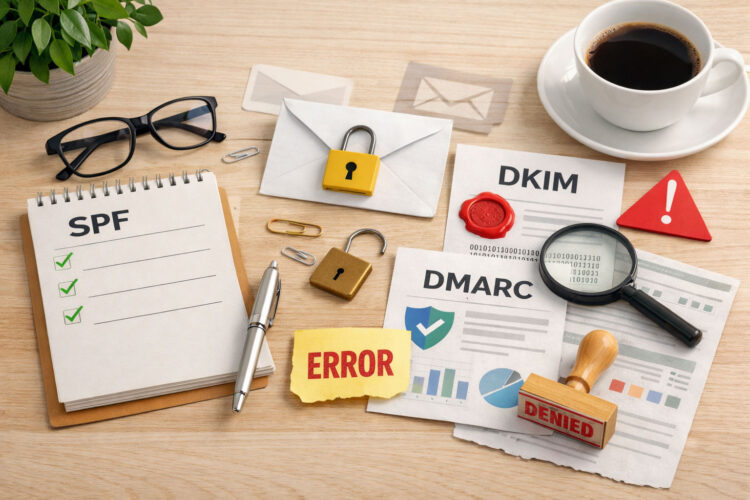
You’ve likely encountered the digital detritus of an email authentication failure, whether subtly as a message relegated to your spam folder or dramatically as a bounced email. These failures aren’t mere inconveniences; they’re the chinks in your communication armor, potentially leading to lost business, compromised security, and a tarnished sender reputation. This article aims to equip you with the knowledge and practical steps to navigate and resolve common email authentication issues, transforming these digital roadblocks into manageable speed bumps.
Before delving into solutions, it’s imperative to comprehend the foundational technologies that underpin email authentication. Think of these as the three main gatekeepers – each performing a specific check to ensure your email is not only legitimate but also trustworthy.
SPF (Sender Policy Framework): The Authorized Sender List
Imagine SPF as an exclusive guest list for your domain. When an email server receives a message from your domain, it consults your domain’s SPF record, a TXT record published in your DNS. This record explicitly lists the IP addresses and hostnames that are authorized to send email on behalf of your domain. If the sending server’s IP address isn’t on that list, it’s immediately suspicious.
- How SPF Works: When an email reaches a receiving server, that server performs a DNS lookup to retrieve the sender’s SPF record. It then compares the IP address of the server that sent the email to the authorized sources listed in the SPF record.
- Common SPF Failures:
- “Hard Fail” (-all): This directive tells the receiving server that any email originating from an unauthorized IP address should be outright rejected or heavily penalized. If your SPF record is configured with
-alland an unauthorized server sends email, it will likely bounce or go straight to spam. - “Soft Fail” (~all): A more lenient directive,
~allsuggests that unauthorized senders might not be legitimate but doesn’t mandate outright rejection. This is often used during initial SPF implementation or for domains with complex sending infrastructures. - Missing or Incorrect SPF Record: If your domain lacks an SPF record or if the record doesn’t include all legitimate sending sources (e.g., your CRM, marketing automation platform, or third-party senders), authentication will fail.
- Too Many Lookups: SPF records can reference other SPF records. However, there’s a limit of 10 DNS lookups. Exceeding this limit will cause SPF to fail, rendering your carefully constructed record ineffective.
- Syntax Errors: Simple typos or incorrect formatting within the SPF record can invalidate it.
DKIM (DomainKeys Identified Mail): The Digital Signature
DKIM acts as a tamper-evident seal for your emails. It allows the sending organization to digitally sign outgoing email messages, and for the receiving organization to verify that signature using the sender’s public key published in their DNS. This ensures that the email content hasn’t been altered in transit and that the sender is indeed who they claim to be.
- How DKIM Works: The sender generates a cryptographic hash of various parts of the email (headers, body). This hash is then encrypted with the sender’s private key and attached to the email as a DKIM-Signature header. The recipient’s server retrieves the sender’s public key from their DNS record and uses it to decrypt the signature. If the decrypted hash matches a newly computed hash of the email, the signature is valid.
- Common DKIM Failures:
- Missing DKIM Record: Similar to SPF, if your domain doesn’t have a DKIM record published in DNS, or if the selector used by your sending server doesn’t match a published record, DKIM authentication will fail.
- Incorrect DKIM Public Key: Even if a record exists, a mismatch between the public key in your DNS and the private key used for signing will invalidate the signature. This often happens during migrations or when keys are regenerated but not updated everywhere.
- Message Tampering: If the email content (headers or body, depending on what’s signed) is altered after the DKIM signature is applied and before it reaches the recipient, the signature will no longer be valid.
- Wrong Selector: Your sending email service (e.g., Mailchimp, SendGrid, Google Workspace) will provide you with specific DKIM selectors. Using the wrong selector in your DNS record will prevent the receiving server from finding the correct public key.
- Record Misconfiguration: Simple errors in copying and pasting the provided DKIM record into your DNS can lead to failure.
DMARC (Domain-based Message Authentication, Reporting, and Conformance): The Policy Enforcer
DMARC is the overarching policy layer that builds upon SPF and DKIM. It tells receiving email servers what to do with messages that fail SPF or DKIM checks and provides a feedback loop that allows you to monitor authentication results. Think of DMARC as a sophisticated alarm system that not only detects intruders but also logs their attempts and even dictates their fate.
- How DMARC Works: DMARC checks for “alignment.” This means that the “From” domain in the email header must align with the SPF-authenticated domain and/or the DKIM-signed domain. If SPF or DKIM pass, and the domains align, DMARC passes. If they fail to align, DMARC’s policy comes into play.
- DMARC Policies:
p=none(Monitor): This policy instructs receiving servers to do nothing specific with failed emails other than report on them. It’s the safest starting point for implementation, allowing you to gather data without impacting deliverability.p=quarantine(Quarantine): This policy suggests that receiving servers move failed emails to the spam folder.p=reject(Reject): The most stringent policy,p=rejecttells receiving servers to outright refuse delivery of messages that fail DMARC. Use with caution after thorough testing.- Common DMARC Failures:
- SPF or DKIM Alignment Failure: Even if SPF or DKIM individually pass, DMARC requires that the domain used in the “From” header aligns with the domain authenticated by SPF and/or DKIM. For example, if your SPF record authenticates
server.mailprovider.combut your “From” address is[email protected], SPF passes but DMARC will fail due to a lack of alignment if you are using strict SPF alignment (adkim=sandaspf=sflags). - Missing DMARC Record: Without a DMARC record, receiving servers have no clear policy on how to handle emails that fail SPF or DKIM.
- Incorrect DMARC Policy: Implementing
p=rejecttoo early can lead to legitimate emails being blocked if your SPF/DKIM are not perfectly configured. - Aggregate Report Issues: DMARC provides
ruatags for aggregate reports andruftags for forensic reports. Incorrectly configuredruaemail addresses can prevent you from receiving valuable authentication data.
Initial Troubleshooting: Where to Begin Your Investigation
When you’re faced with an email authentication failure, the sheer number of variables can feel overwhelming. Adopt a systematic approach, much like a detective piecing together clues.
Review Bounce Messages and Error Codes
Bounce messages are your first and often most informative line of defense. They are like breadcrumbs leading you back to the source of the problem.
- Analyze the “Remote Server Returned” Section: This part of the bounce message often contains specific error codes and text from the recipient’s mail server. Look for phrases like “SPF fail,” “DKIM invalid,” “DMARC policy reject,” or “unauthenticated sender.”
- Consult Error Code Dictionaries: While some codes are generic, others are specific to mail servers (e.g., Gmail, Outlook). A quick search for the error code (e.g., “SMTP 550 Blocked”) can often shed light on the nature of the refusal.
- Identify the Failing Authentication Method: Does the bounce message explicitly mention SPF, DKIM, or DMARC? This immediately narrows down your investigation.
Use Online Authentication Checkers
Several free online tools can instantly verify your domain’s SPF, DKIM, and DMARC records and even perform simulated email authentication checks. These are invaluable for quick diagnostics.
- What to Look For:
- SPF Syntax and Validity: Ensure your SPF record is correctly formatted and doesn’t exceed the 10-lookup limit.
- DKIM Record Presence and Format: Verify that your DKIM selector points to a valid public key and the record is correctly formatted.
- DMARC Policy and Reporting: Confirm your DMARC record exists, its policy is appropriate for your stage of implementation, and your reporting addresses are correct.
- Recommended Tools:
- MXToolbox (various checks)
- DMARCian (DMARC-specific analysis)
- SPF Record Testing Tools (many available via a quick search)
Check DNS Records for Accuracy
The Domain Name System (DNS) is the critical backbone for email authentication. Errors here are frequent culprits.
- Verify Record Type: Ensure SPF and DMARC records are TXT records. DKIM records are also typically TXT, though they can sometimes be CNAME records pointing to a service provider’s key.
- Confirm Hostname/Name: For SPF, it’s usually
@or your domain name. For DKIM, it’sselector._domainkey. For DMARC, it’s_dmarc. - Precision in Value/Content: Every character matters. Misspellings, extra spaces, or omitted characters will invalidate the record. Copy and paste is your friend here, but always double-check.
- Propagation Delays: DNS changes aren’t instantaneous. It can take hours or even up to 48 hours for changes to propagate across the internet. Be patient, but also be aware that an immediate re-test might not reflect your latest changes.
Solutions for Specific Authentication Failures

Once you’ve identified the failing component, you can target your corrections.
Resolving SPF Failures
SPF failures are often a matter of omission or misconfiguration.
- Include All Authorized Senders: This is perhaps the most common fix. Every service that legitimately sends email on behalf of your domain (your email provider, marketing platform, CRM, transactional email service, etc.) must be included in your SPF record.
include:Mechanism: Useinclude:spf.mailgun.org(replacemailgun.orgwith the actual service provider’s SPF domain) for each third-party sender.aandmxMechanisms: If your mail servers are also your primary email senders,aandmxmechanisms can be useful, butincludeis often more flexible for third-party services.ip4:andip6:Mechanisms: Directly specify IP addresses or ranges if you have dedicated sending IPs.- Avoid the 10-Lookup Limit: If you’re using many
includemechanisms, you might hit the limit. - Consolidate SPF Records: Some providers offer a consolidated SPF record that covers multiple internal IP ranges.
- Use CNAME Flattening (Caution): Some DNS providers offer CNAME flattening, which can help, but it’s not universally supported and can introduce other complexities.
- Prioritize Critical Senders: If you’re consistently hitting the limit, you may need to decide which senders are absolutely critical for SPF coverage and rely on DKIM for others.
- Correct SPF Syntax:
- Start with
v=spf1. - End with an enforcement mechanism (
-allfor hard fail,~allfor soft fail,?allfor neutral). - Ensure proper spacing and no extraneous characters.
- Prevent Multiple SPF Records: You should only have one SPF TXT record for your domain. Multiple records will confuse recipient servers and cause SPF to fail. Consolidate all includes into a single record.
Remedying DKIM Failures
DKIM issues often stem from incorrect keys or content modification.
- Generate and Publish Correct DKIM Keys: Your email service provider will give you the specific DKIM record (selector and public key) to add to your DNS.
- Ensure Correct Selector: The selector (e.g.,
s1,mail) in your DNS record must match what your sending server is using. - Copy/Paste with Care: DKIM public keys are long strings of characters. Even a single misplaced character will invalidate the key.
- Verify DKIM Signing is Enabled on Your Sending Server: Many email services require you to actively enable DKIM signing from within their platform. Check your settings.
- Prevent Message Tampering: If an intermediate mail server or a third-party service modifies your email after it has been signed by your sending server but before it reaches the recipient, DKIM will fail.
- Content Scanners: Some email security gateways might alter message content or headers. Adjust their settings to avoid interfering with DKIM signatures.
- Forwarding: Email forwarding can sometimes break DKIM signatures, especially if the forwarding server alters the message.
- Match Selector in DNS: Confirm that the selector parameter (e.g.,
s=selector) in theDKIM-Signatureheader of your outgoing emails correctly corresponds to the selector found in your DNS records.
Fixing DMARC Failures
DMARC failures usually point back to underlying SPF or DKIM issues, or a lack of alignment.
- Ensure SPF and DKIM Pass (and Align): This is the core of DMARC. Your SPF and DKIM records must be correctly configured and pass their respective checks. More importantly, the domain in your “From” header must align with the authenticated domain from SPF and/or DKIM.
aspf=s(strict SPF alignment): Requires the SPF authenticated domain to perfectly match the “From” domain.aspf=r(relaxed SPF alignment): Allows the SPF authenticated domain to be a subdomain of the “From” domain.adkim=s(strict DKIM alignment): Requires the DKIM authenticated domain to perfectly match the “From” domain.adkim=r(relaxed DKIM alignment): Allows the DKIM authenticated domain to be a subdomain of the “From” domain. (Relaxed alignment is usually safer when starting out).- Start with a
p=nonePolicy: If you’re implementing DMARC for the first time, begin withp=none. This allows you to gather DMARC reports and identify legitimate sending sources that might be failing authentication without impacting your deliverability. - Analyze DMARC Reports: The aggregate (RUA) and forensic (RUF) reports provide invaluable data.
- Identify Unauthorized Senders: Reports will show you which IP addresses are attempting to send email as your domain, helping you identify potential spoofing or forgotten legitimate senders.
- Pinpoint Authentication Failures: They clearly indicate whether SPF, DKIM, or alignment issues are causing failures.
- Gradually Move to
quarantineorreject: Once your DMARC reports show a high percentage of authenticated legitimate mail and minimal unauthorized traffic, you can gradually increase your DMARC policy strength. - Correct
ruaandrufMailbox: Ensure the email addresses specified in your DMARC record for receiving aggregate (rua) and forensic (ruf) reports are valid and actively monitored. These reports are your eyes and ears for DMARC performance.
Preventative Measures and Best Practices

An ounce of prevention is worth a pound of cure, especially in the realm of email authentication. Think of these as good email hygiene.
Regularly Monitor DMARC Reports
DMARC reports are an ongoing dialogue with the internet. They inform you not just about your own sending, but also about malicious actors attempting to impersonate your domain.
- Use DMARC Reporting Tools: Many third-party services specialize in processing and visualizing DMARC reports, making them much easier to understand than raw XML files.
- Set Up Alerts: Configure alerts for significant changes in authentication rates or detection of new unauthorized sending sources.
Maintain Accurate DNS Records
Your DNS records are the public face of your email security. They need to be spotless.
- Document Everything: Keep a clear record of all your DNS entries, particularly those related to email authentication. This is invaluable during troubleshooting or when onboarding new services.
- Review Periodically: Set a schedule to review your SPF, DKIM, and DMARC records, especially after adding or removing email services, changing mail providers, or modifying your domain’s infrastructure.
Educate Your Team
Email security isn’t just an IT problem; it’s an organizational responsibility.
- Phishing Awareness: Train your employees to recognize phishing attempts, as even excellent email authentication won’t stop an employee from clicking a malicious link if they’re not vigilant.
- Sender Awareness: Ensure anyone sending email on behalf of your domain understands the importance of using authorized services and the potential consequences of bypassing them.
Email authentication failures are not insurmountable. By understanding the underlying mechanisms of SPF, DKIM, and DMARC, systematically troubleshooting error messages, and implementing preventative measures, you can transform the frustrating experience of email authentication failures into a streamlined process, ensuring your messages reliably reach their intended recipients, and strengthening your domain’s online reputation. Your efforts will translate into higher deliverability, enhanced security, and greater trust in your digital communications.
FAQs
What are common causes of SPF authentication failures?
SPF authentication failures often occur due to missing or incorrect SPF records, exceeding the DNS lookup limit, or sending emails from unauthorized IP addresses not listed in the SPF record.
How can I quickly fix DKIM authentication issues?
To fix DKIM issues, ensure that the DKIM public key is correctly published in your DNS, the selector matches the one used in your email headers, and that your mail server is properly signing outgoing emails with the private key.
What steps should I take if DMARC reports show authentication failures?
Review your SPF and DKIM configurations to ensure they align with your sending domains, verify that your DMARC policy is correctly set up, and adjust your DNS records as needed to resolve alignment and authentication problems.
Can misconfigured DNS records cause authentication failures?
Yes, incorrect or missing DNS records for SPF, DKIM, or DMARC can lead to authentication failures, as receiving servers rely on these records to verify the legitimacy of your emails.
How can I test if my SPF, DKIM, and DMARC records are correctly set up?
You can use online tools and validators to check your SPF, DKIM, and DMARC records. These tools analyze your DNS records and provide detailed reports on any errors or misconfigurations.